This page provides step-by-step instructions for deploying the OpsRamp NextGen Gateway as a virtual machine (VM) on supported hypervisors using the OpsRamp-provided ISO.
About OpsRamp NextGen Gateway ISO
The OpsRamp NextGen Gateway ISO is a pre-configured, bootable image based on Ubuntu/Linux.
It includes:
- A lightweight Kubernetes distribution (K3s) for orchestrating Gateway components.
- The OpsRamp Collector Bootstrap Tool, which automates the installation and registration of the Gateway.
- Pre-packaged scripts and configuration utilities to streamline setup.
Prerequisites
Before deploying the NextGen Gateway virtual machine using the OpsRamp-provided ISO, ensure that your environment meets all the necessary requirements to support a successful installation and connection to the OpsRamp Cloud platform.
- Supported Hypervisor and Helm Versions
For detailed information, refer to the Support Matrix document. - System and Server Requirements
Verify that your infrastructure meets the minimum hardware and software specifications required to run the NextGen Gateway VM.
For detailed information, refer to the server requirements section. - Network Access and Whitelisting
To ensure seamless communication between the Gateway and the OpsRamp SaaS platform:- Whitelist the required IP addresses and URLs in your firewall or security group settings.
- For the complete list of domains and endpoints, refer to the IP Whitelist documentation.
- Whitelist the required IP addresses and URLs in your firewall or security group settings.
- Proxy Configuration (Optional)
If your organization uses a proxy server to control outbound traffic for security or compliance reasons:- You must configure proxy settings at the node level by editing the
/etc/environmentfile on the Gateway VM. - This ensures that all outbound requests from the Gateway (including registration and tunnel connectivity) are routed through the proxy.
- For detailed setup steps, see the Proxy Configuration document.
- You must configure proxy settings at the node level by editing the
Step 1: Download the NextGen Gateway ISO
To download the NextGen Gateway ISO, follow the steps below:
- In the OpsRamp portal, select your client from All Clients.
- Navigate to Setup > Account > Collector Profile.
- On the Collector Profiles page, click + ADD.

- On the configuration page, enter the following details:
- Profile Name: Provide a name for the profile you are creating.
- Profile Type: Select either Standard or Elastic. By default, Standard is selected.
To enable the Elastic option, please contact OpsRamp Support Team. For more information on this feature, refer to the Elastic Collector Profile document. - Description (Optional): Add a short description for the profile.
- Gateway Collector: Select the VIRTUAL APPLIANCE (ISO) NEXTGEN tile. You can also choose the desired Gateway version from the available options.
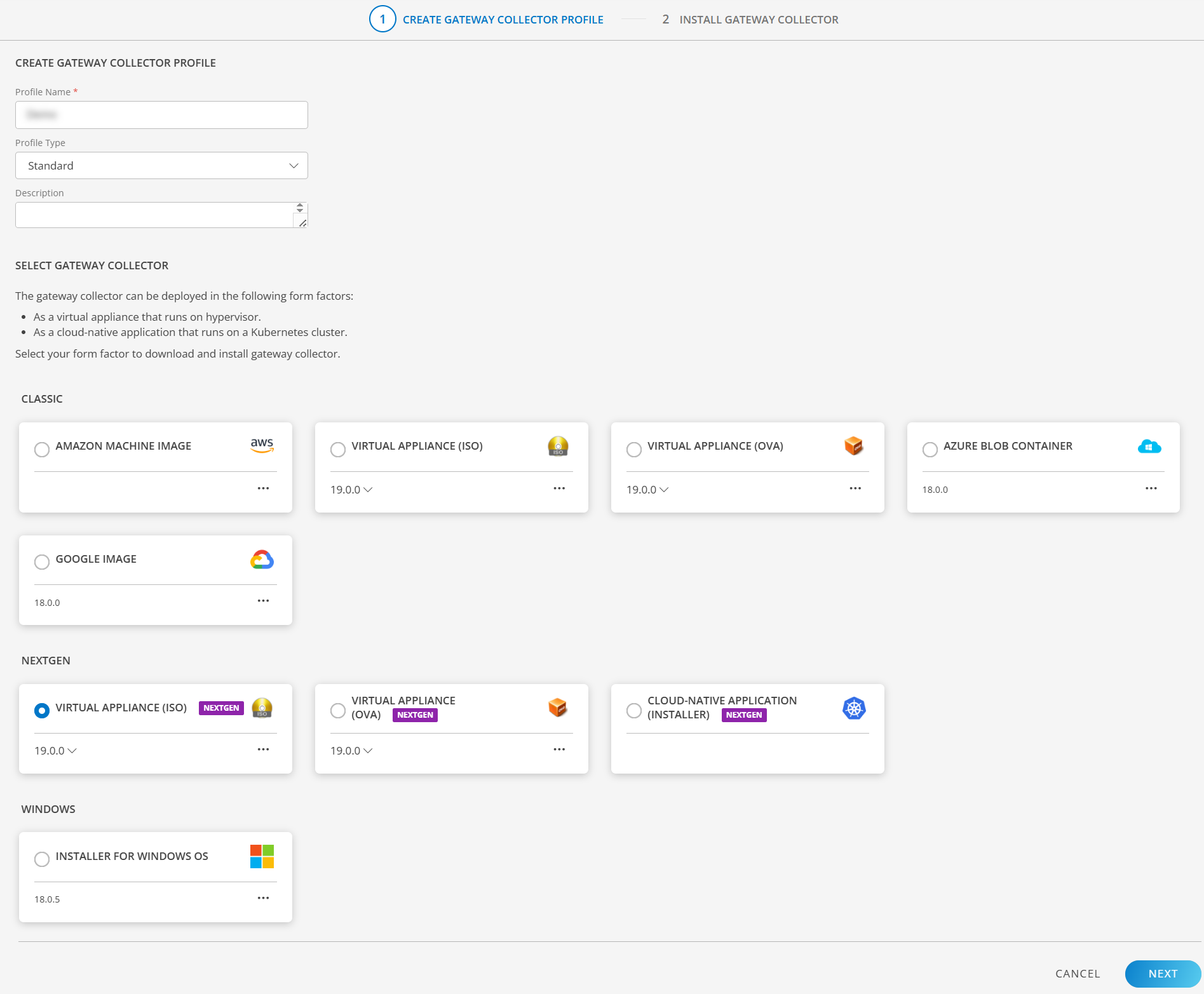
- Click NEXT.
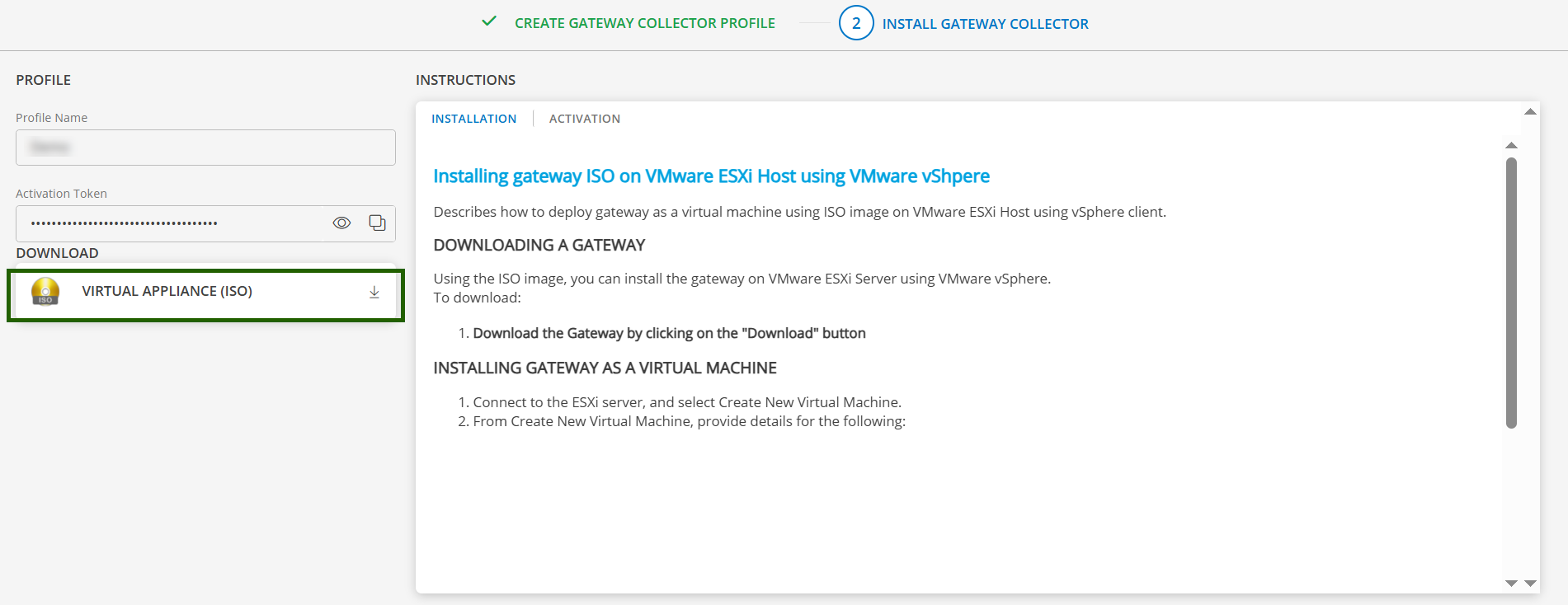
- Click VIRTUAL APPLIANCE (ISO) in the left pane to download.
Once the ISO is successfully downloaded, you can proceed with the installation process.
Step 2: Install the NextGen Gateway ISO as a Virtual Machine
Refer to the Configure the Gateway VM using ISO document for step-by-step instructions on deploying the NextGen Gateway as a virtual machine using the ISO image.
Step 3: Change Password
For enhanced security, you should change the default system password immediately after provisioning the Gateway. Updating your password reduces the risk of unauthorized access and helps maintain a secure environment. Use the following command to change default password:
passwd gateway-adminStep 4: Update Hostname and IP Address
Refer to the Update Hostname and IP Address document for step-by-step instructions.
Note: Set Unique Hostname and IP Address
It is recommended to assign a unique hostname and configure the appropriate IP address for the Gateway before installing K3s. This ensures proper identification and avoids conflicts within your network.Caution
Do not change the hostname and ip address after K3s has been installed, as it may cause issues with cluster stability and service discovery.Step 5: Install Kubernetes
For detailed, step-by-step instructions on installing Kubernetes, refer to the Install K3s on ISO/OVA documentation.
Step 6: Register the Gateway
Refer to the Install Gateway Using OpsRamp Bootstrap Tool document to activate the Gateway collector. This document will guide you through the process of using the bootstrap tool to complete the NextGen Gateway installation.