Overview
MetalLB is a load balancer solution designed specifically for bare-metal Kubernetes clusters, such as those deployed using the OpsRamp ISO/OVA. It enables external access to Kubernetes services by assigning IP addresses from a configurable IP address pool.
Configuring MetalLB IP ranges is a critical step to ensure your Kubernetes services are reachable from outside the cluster. This guide provides step-by-step instructions tailored for OpsRamp ISO/OVA users on how to configure and manage MetalLB IP address ranges effectively.
Note
This guide applies exclusively to Kubernetes clusters deployed using OpsRamp-provided ISO/OVA images.Understanding MetalLB IP Address Pools
MetalLB manages a pool of IP addresses that it can assign dynamically to Kubernetes services of type LoadBalancer. By configuring valid IP ranges, you ensure MetalLB can allocate external IPs that clients can use to access your services.
Configuration Methods
You can configure MetalLB IP ranges via two primary methods:
- Using the OpsRamp Setup Command during initial K3s installation
- Manually editing the MetalLB IP address pool post-installation
Method 1: Configuring MetalLB IP Range During Cluster Setup
When setting up a high-availability (HA) K3s cluster with OpsRamp ISO/OVA, you can specify MetalLB IP ranges using the opsramp-collector-start command as follows:
opsramp-collector-start setup init --enable-ha --loadbalancer-ip 192.25.45.45-192.25.45.48You can specify multiple IP ranges separated by commas, e.g.: 192.25.251.12/32,192.25.251.23/28,192.25.251.50-192.25.251.56
Sample output snippet:
Installing K3s

Installed K3s
Pulled: us-docker.pkg.dev/opsramp-registry/gateway-cluster-charts/metallb:6.4.3
Digest: sha256:c78813b16114818b95f0d19151c42c1c175706b7b10319927af5b55a0fa8048c
NAME: metallb
LAST DEPLOYED: Mon Jun  9 06:49:31 2025
NAMESPACE: kube-system
STATUS: deployed
REVISION: 1
TEST SUITE: None
NOTES:
CHART NAME: metallb
CHART VERSION: 6.4.3
APP VERSION: 0.14.9

Pulled: us-docker.pkg.dev/opsramp-registry/gateway-cluster-charts/longhorn:1.7.2
Digest: sha256:77b8896824138e268b51b9f0f8131f1696b8a61109ab9dc52a18787723035d5b
NAME: longhorn
LAST DEPLOYED: Mon Jun  9 06:49:42 2025
NAMESPACE: longhorn-system
STATUS: deployed
REVISION: 1
TEST SUITE: None
NOTES:
Longhorn is now installed on the cluster!

Please wait a few minutes for other Longhorn components such as CSI deployments, Engine Images, and Instance Managers to be initialized.

Visit our documentation at https://longhorn.io/docs/
HA enabled successfully
This command automates cluster setup, K3s installation, and MetalLB configuration with the specified IP ranges.
Method 2: Manually Updating MetalLB IP Range Post-Installation
If MetalLB is already deployed and you need to modify the IP ranges, follow these steps:
Step 1: Verify Installed MetalLB Version
Run this to check MetalLB’s version and status:
helm list -n kube-systemSample output:
NAME             NAMESPACE      REVISION    UPDATED                                    STATUS      CHART                  APP VERSION
ipaddresspool    kube-system    1           2025-06-09 07:00:07.415427932 +0000 UTC    deployed    ipaddresspool-2.0.0    1.16.0
metallb          kube-system    1           2025-06-09 06:49:31.148955856 +0000 UTC    deployed    metallb-6.4.3          0.14.9
Step 2: Update IP Address Pool
For MetalLB v4.4.2 and Later
Get the existing ipaddress which are passed at the time of installation
helm get values ipaddresspool -n kube-system > ipaddresspool.yamlAdd the new ipaddress to the ipaddresspool.yaml file
vi ipaddresspool.yamlUse Helm to upgrade and update the IP address pool:
helm upgrade ipaddresspool oci://us-docker.pkg.dev/opsramp-registry/gateway-cluster-charts/ipaddresspool \
  --version 2.0.0 \
  --set IPAddressPool={"<your-ip-range>"} \
  -n kube-system
Examples:
- Single IP range:
--set IPAddressPool={"172.22.110.176-172.22.110.183"} - Subnet range:
--set IPAddressPool={"172.22.110.176/28"} - Multiple ranges:
--set IPAddressPool={"172.22.110.176/28,172.22.100.1/28,172.23.100.1-172.23.100.12"}
For MetalLB v1.0.0 to v4.4.1
Edit the MetalLB config map directly:
kubectl edit configmap metallb-config -n kube-systemSample Output
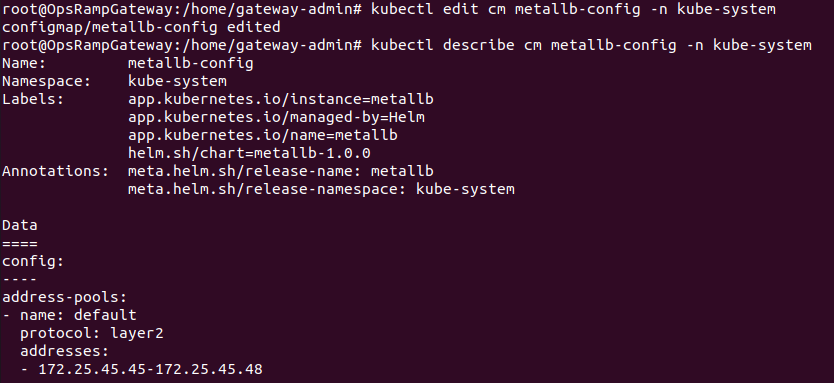
Update the addresses: field with your desired IP ranges, save, and exit
Step 3: Restart MetalLB Pods
After updating the IP ranges, restart the MetalLB pods to apply changes:
kubectl delete pod -n kube-system -l app=metallbThis will cause Kubernetes to recreate the pods with the updated configuration.
Sample Output
root@hd-ng-19-3n-host2:/home/gateway-admin# kubectl get pods -n kube-system | grep metallb
metallb-controller-fc66bbfbd-9qbgk   1/1     Running   0        30m
metallb-speaker-4ngh4                1/1     Running   0        30m
Step 4: Verify MetalLB Configuration
- For MetalLB v4.4.2 and later:
kubectl get ipaddresspool first-pool -n kube-system -o yaml - For MetalLB v1.0.0 to v4.4.1:
kubectl describe configmap metallb-config -n kube-system
IP Range Syntax and Examples
| IP Range Notation | Description | Effective IPs |
|---|---|---|
| 192.25.254.45/32 | Single IP | 192.25.254.45 |
| 192.25.254.45/30 | Subnet with 4 IPs | 192.25.254.44 - 192.25.254.47 |
| 192.25.254.44 - 192.25.254.49 | Custom IP range | 192.25.254.44 - 192.25.254.49 |