Introduction
Custom fields allow you to capture additional, business-specific information when creating an entity at the Service Desk. This gives you the flexibility to tailor forms beyond the predefined fields, enabling you to collect more relevant data that is specific to your organization’s needs. Custom fields can be created at the partner level or client level to enhance your forms and improve data collection.
To create custom fields:
Navigate to Custom Forms under Configuration section.You will be presented with different entity tabs. These tabs correspond to the various entities (for example, tickets, incidents, or requests) for which you can create custom fields.

Click the relevant Entity tab to access the form where you want to add custom fields.
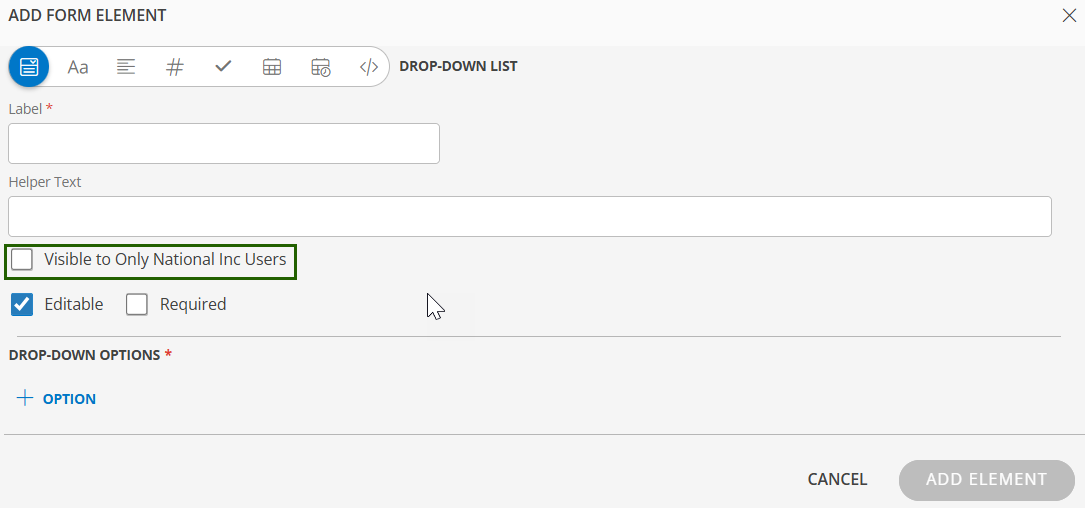
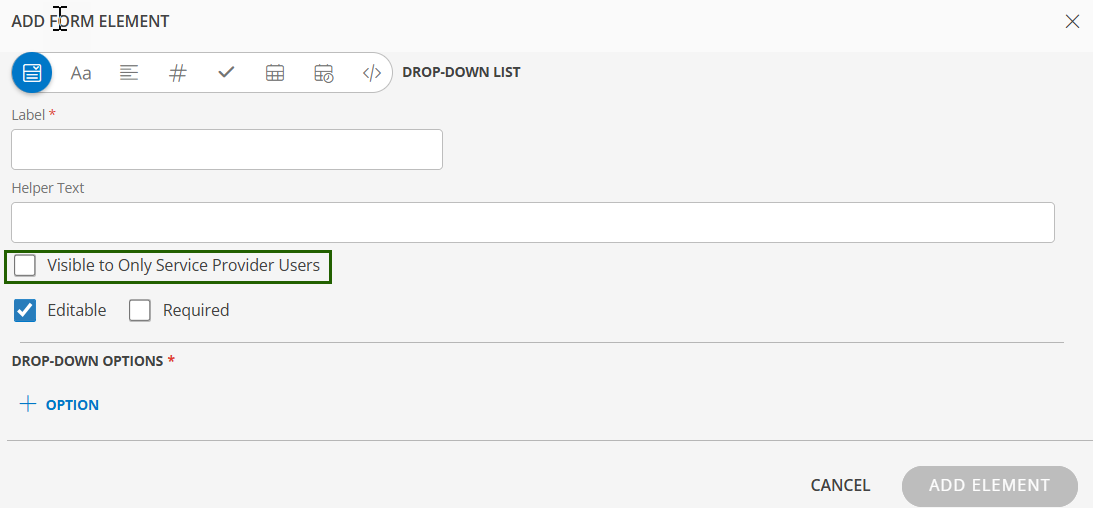
Click + ADD on the entity tab.The Add Form Element page is displayed.

Once all details are filled in, click Add Element to add the configured drop-down list to the form.
Custom Field Visibility for Service Provider and Partner Users
Each custom field now includes visibility checkboxes that allow you to control who can view and interact with that field. You can select whether the field should be visible to Service Provider users or Partner users.
- When a visibility option is selected, only the chosen user groups will be able to view, create, edit, or remove that custom field on the form.
- If a user group is not selected, the custom field remains hidden for that group across all supported operations.